Create Your Account
Last updated: November 7, 2026
What this is
How to get approved, create your publisher account, and add your team.
Key takeaway: Apply first at audyence.com/who-we-serve/sellers. Once approved, sign up at www.audyence.app as a Publisher, verify your email, then invite your team from Team using work email addresses.
Before you start: get approved
Start at audyence.com/who-we-serve/sellers to apply. Audyence's vetting process includes a review of your business profile.
Important: You can create your account only after you're approved.
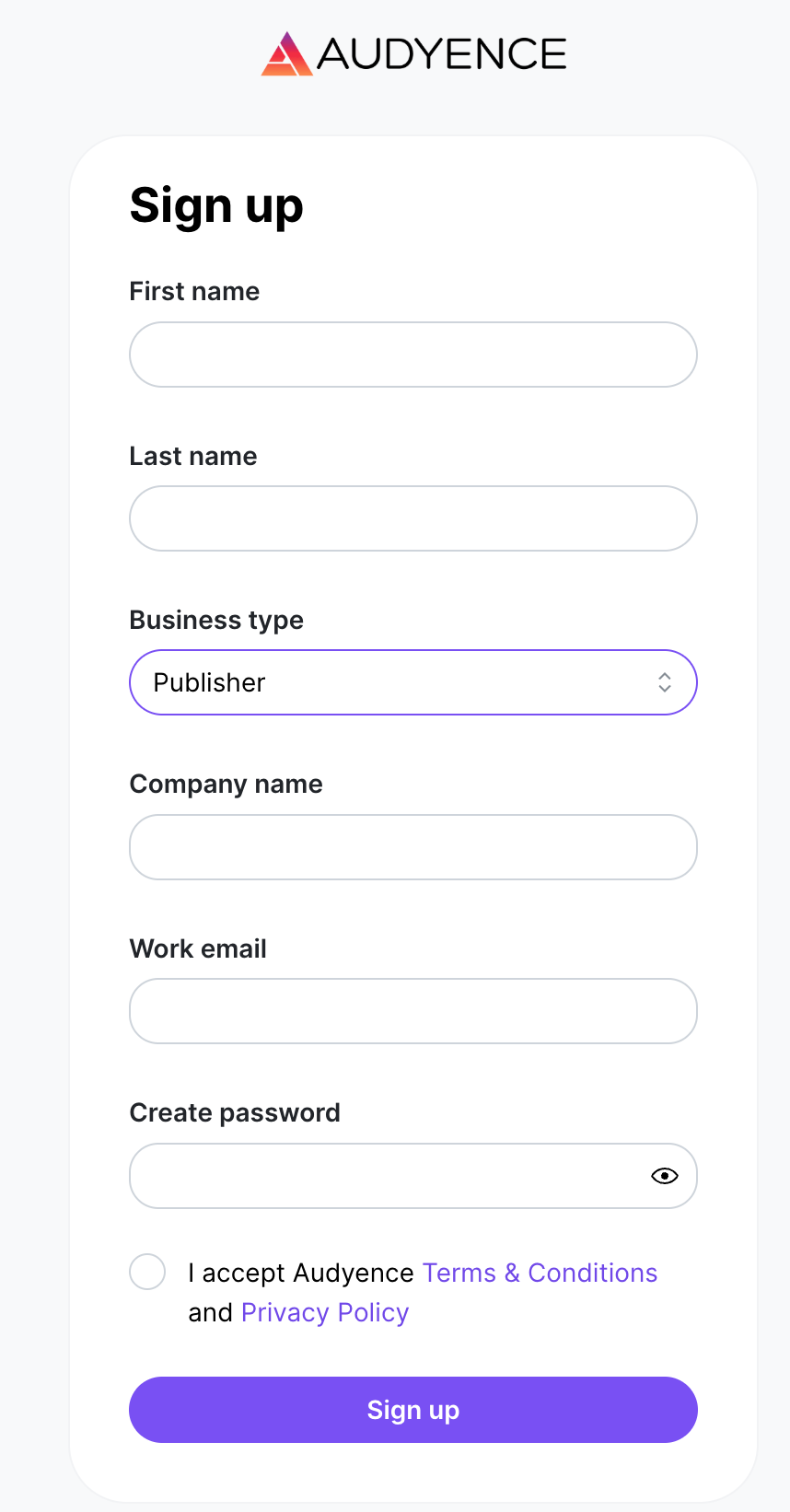
Step 1: Create your account
After approval, go to www.audyence.app.
Click Sign Up.
Enter your details and select Publisher as your business type.
Accept the Terms & Conditions and Privacy Policy.
Check your inbox and enter the verification code to confirm your email address.
Once your email is verified, you can sign in.
Step 2: Add your team
You can add several team members to your publisher account. We recommend it for any organization where different people handle bidding, lead delivery, and account management.
To invite a team member:
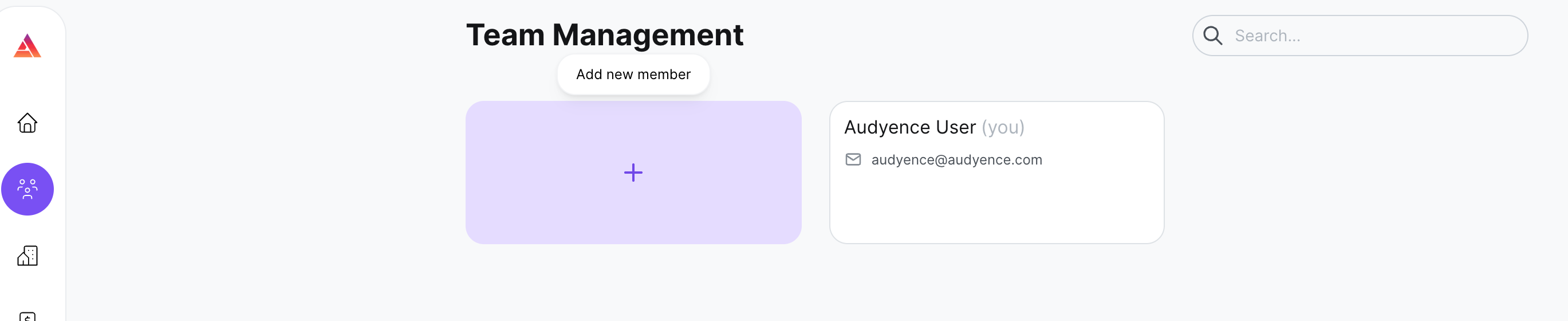
Go to Team in your account.
Click Add new member.
Enter the team member's work email address.
They get an email from support@audyence.app with instructions to create their account.
They follow the link, set up their login, and get access to your publisher account.
Important: Personal email addresses (Gmail, Yahoo, and so on) aren't accepted. The number of users you can add depends on your plan. See Understanding Subscription Plans.
Things to know
Everyone on your account shares access to the same campaigns, leads, and reports.
Each publisher account has only one account owner. To transfer ownership, contact pubsupport@audyence.com.
Tip: If a team member doesn't get their invitation, ask them to check spam and confirm you used the right email domain.