End-to-end lead delivery
Last updated: November 7, 2026
What this is
Every step from accepting a campaign to an approved lead counted toward your goal, and what you need to know at each one.
Key takeaway: Accept the campaign, set up the landing page, download the CSV template from the Delivery tab, fill it in, and upload it (CSV, max 10 MB). Each file goes through 7 checks. Valid leads go to Pending (or Queued) for buyer review. Rejected leads show a reason so you can fix and resubmit.
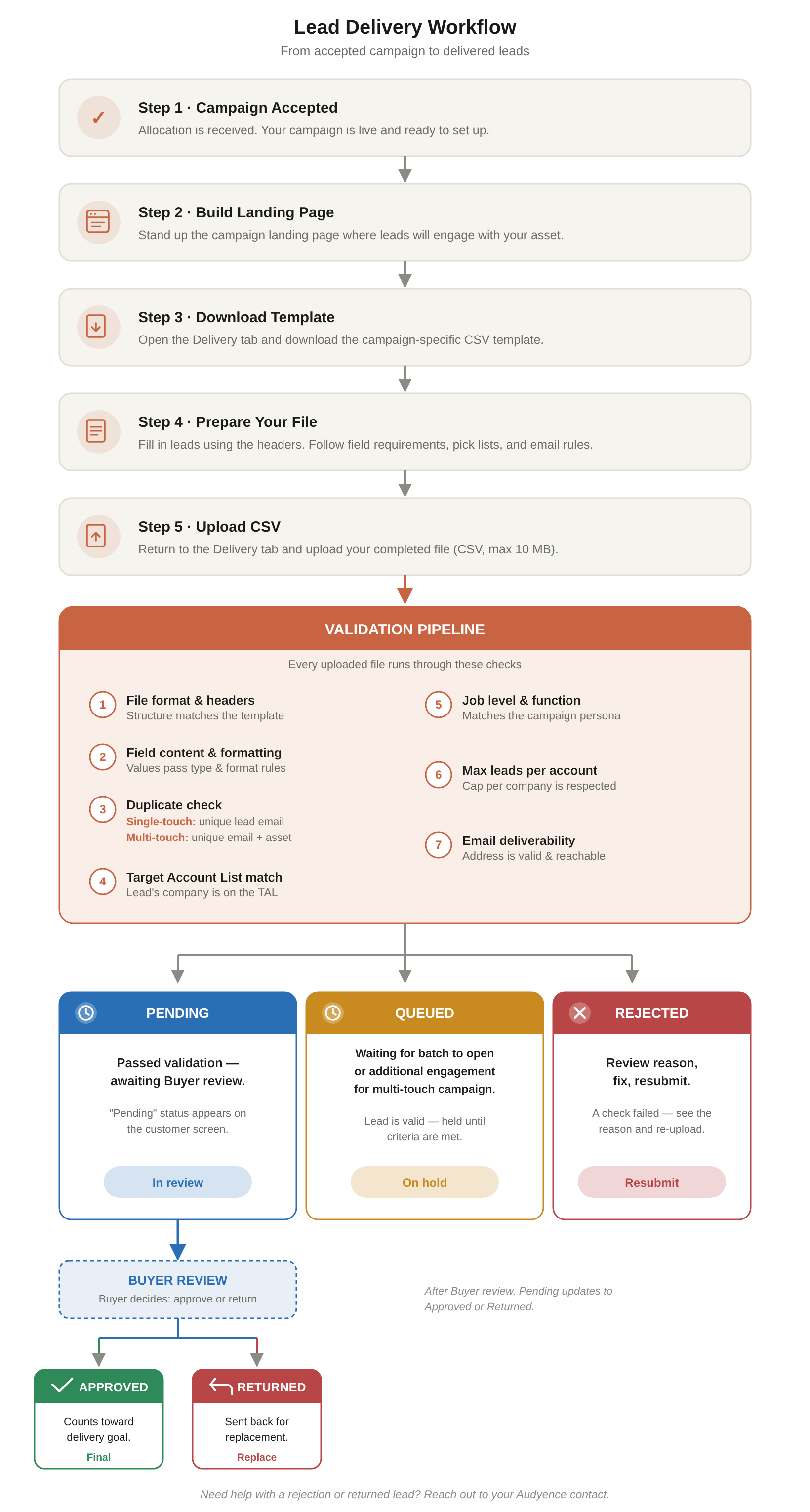
Step by step
Campaign accepted. You've received your allocation. Your campaign is live and ready to set up.
Build the landing page. Set up the campaign landing page where leads engage with your asset. See Hosting Campaign Landing Pages.
Download the template. Open the Delivery tab and download the campaign's CSV template.
Prepare your file. Fill in leads using the template headers. Follow the field requirements, pick lists, and email rules. See Lead upload requirements and best practices.
Upload the CSV. Go back to the Delivery tab and upload your finished file (CSV, max 10 MB).
Note: The Delivery tab: open any campaign and click the Delivery tab to download the campaign's CSV template, upload leads, track your approved leads against the goal, and see each lead's live status and rejection reason. Click Export to download every lead you've uploaded, in any status, as a CSV with Lead Status, Rejection Reason and Lead Uploaded Date columns.
The validation checks
Every uploaded file goes through these checks:
# | Check | What passes |
|---|---|---|
1 | File format and headers | The structure matches the template. |
2 | Field content and formatting | Values pass type and format rules. |
3 | Duplicate check | Single-touch: unique lead email. Multi-touch: unique email + asset. |
4 | Target Account List match | The lead's company is on the TAL. |
5 | Job level and function | Matches the campaign's target persona. |
6 | Max leads per account | The per-company cap is respected. |
7 | Email deliverability | The address is valid and reachable. |
What happens next
Status | What it means | What you do |
|---|---|---|
Validating | The lead was submitted and is going through the automatic checks. | Nothing. Check back shortly. |
Queued | The lead passed all checks but is waiting. Either it's waiting for the next batch window, it's being held for an extra engagement (multi-touch campaigns), or your allocation is at its budget limit. In that last case, queued leads are released automatically if the buyer adds budget to the campaign. | Nothing. It moves automatically. |
Pending | The lead passed all checks and is ready for the buyer to review. | Nothing. Wait for the buyer's decision. |
Approved | The lead passed all checks and the buyer approved it. It counts toward your delivery total. This is final. | Nothing. You've delivered. |
Rejected | The lead failed one or more checks. | Read the rejection reason and fix it if you can. This improves your quality rating. Rejection reasons are visible on the Achiever and Earner plans. |
Returned | The buyer reviewed the lead and sent it back. It must be replaced within 7 business days. If you have Queued leads, they're moved up automatically. | Replace it, or let your queue fill the gap automatically. |
Pending is also the status the buyer sees on their screen.
Tip: Contact pubsupport@audyence.com for landing page reviews, campaign questions, lead status updates, platform feedback, or anything else.