Lead upload requirements and best practices
Last updated: November 7, 2026
What this is
The rules your lead file must follow to pass validation: file format, fields, business emails, pick lists, characters, and how batches and pacing work.
Key takeaway: Upload CSV files (max 10 MB) using the campaign template from the Delivery tab. Use work emails from TAL companies only, match pick-list values exactly, save as UTF-8, and deliver at a steady weekly pace.
File basics
Item | Rule |
|---|---|
Format | CSV only. |
Maximum file size | 10 MB per upload. |
Template | Download the campaign's own template from the Delivery tab. It has the right headers for that campaign. |
When upload turns on | The lead upload screen becomes available once the campaign goes live. It doesn't appear before the campaign start date. |
Multiple uploads | You can upload many files during the campaign. Each upload is tracked as a separate batch. |
Lead field requirements
Every campaign requires a standard set of fields. Some campaigns have extra required or optional fields listed in the RFP. These are included in your download template and the downloaded field requirements.
Important: All other fields must be filled in and no longer than 500 characters.
Custom qualifying questions
Some RFPs include custom qualifying questions, which have special validation rules:
Note: Rules for qualifying questions:
Question text is required.
Multiple Choice and Multiple Response fields need at least 2 answer options.
At least one answer option must be marked Qualifying.
Answer options must be unique (the check ignores capitals and spaces at the start or end).
Free-form questions can't be marked Qualifying or Disqualifying. Free-form answers are accepted as they are.
When you upload leads for a campaign with qualifying questions, each answer is checked automatically. Matching ignores capitals and spaces at the start or end.
Answer | Lead outcome |
|---|---|
Matches a Qualifying answer option | Passes validation for that question. |
Matches a Disqualifying answer option | Lead is rejected. |
Doesn't match any defined answer option | Lead is rejected. |
One of two answers matches a Qualifying option | When several questions apply to a lead, it's rejected if any single answer is disqualifying. |
Business email requirements
Audyence only accepts business (work) email addresses. Personal and non-business emails are rejected automatically.
What's rejected:
consumer email providers: Gmail, Yahoo, Hotmail, Outlook, AOL, iCloud, and similar
role-based addresses: admin@, info@, support@, sales@, noreply@, and similar
disposable or temporary email addresses
addresses with a history of abuse or spam
What's required:
an email from the contact's company domain (for example, jane.doe@companyname.com)
the company domain must match an account on the campaign's Target Account List (TAL)
Note: Why this matters: advertisers pay for verified contacts at specific target accounts. Consumer and role-based emails can't be tied to a person and don't meet campaign quality requirements.
Pick lists and allowed values
Some campaigns limit certain fields to a pre-approved list of values. This is most common for Job Level, Job Function, Industry, Country, and questions.
Finding pick-list fields:
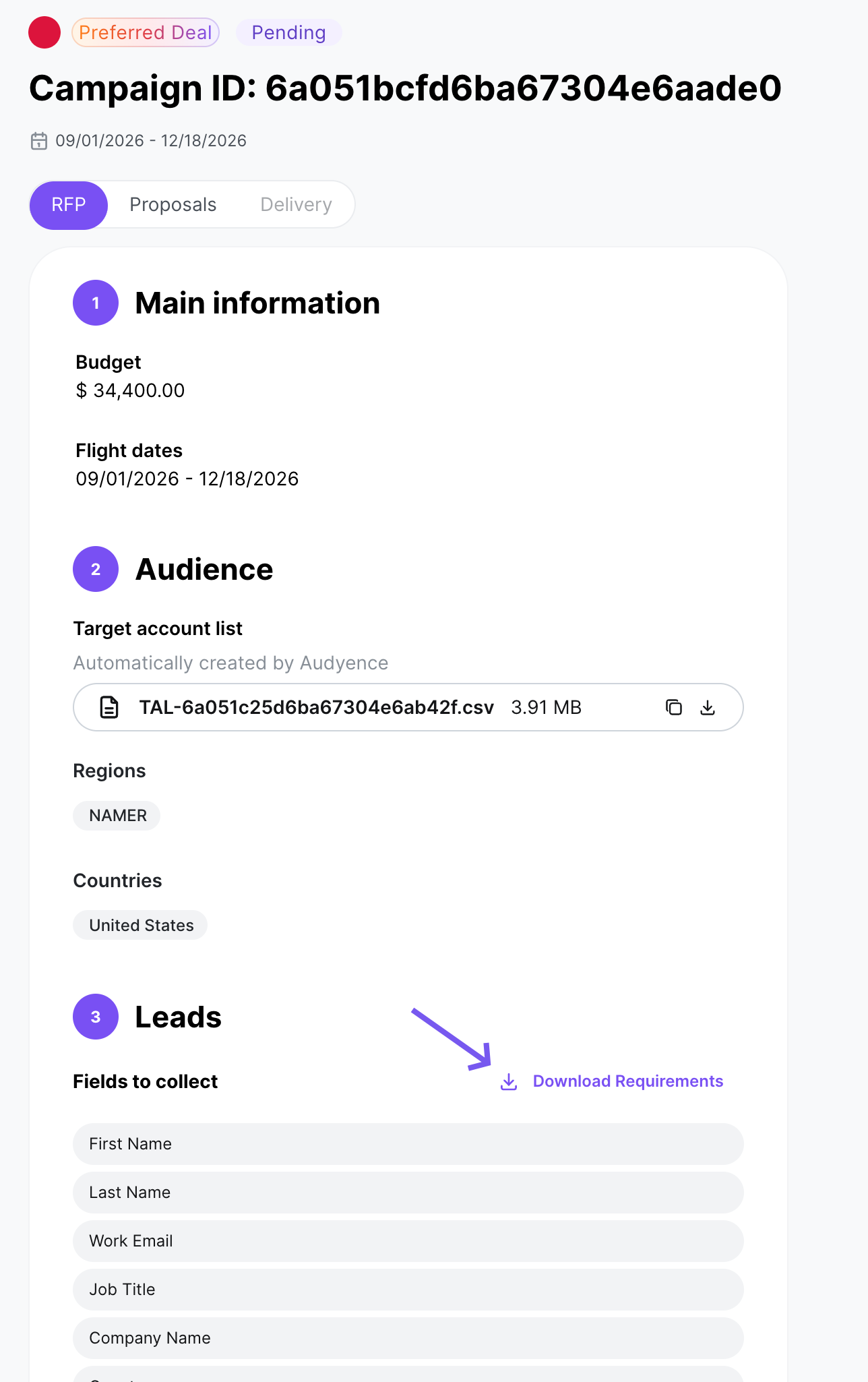
Download the Field Requirements file from the RFP tab. It lists every field for the campaign, including which are pick lists and their allowed values.
The lead upload template may also mark restricted fields.
How pick-list validation works:
If a field has an allowed-values list, any value not on it gets the lead rejected.
Values must match exactly: the match is case-sensitive, and abbreviations or other spellings aren't accepted.
If a field has no pick list, standard format checks apply.
Tip: Review the Field Requirements file early, before you generate leads. Mismatched pick-list values are one of the most common, and most avoidable, rejection causes.
International characters
Audyence supports accented and international characters, and names in non-Latin scripts are supported, including single-character Chinese, Japanese, and Korean first or last names, which are common and valid.
For campaigns in another language, see Campaign Languages.
Warning: Save your CSV as UTF-8. In Excel, use File → Save As → CSV UTF-8 (comma delimited). In Google Sheets, use File → Download → Comma Separated Values (.csv): it exports UTF-8 by default. Don't save as "CSV (MS-DOS)" or "CSV (Macintosh)". These encodings break accented and non-Latin characters and cause rejections.
Batches
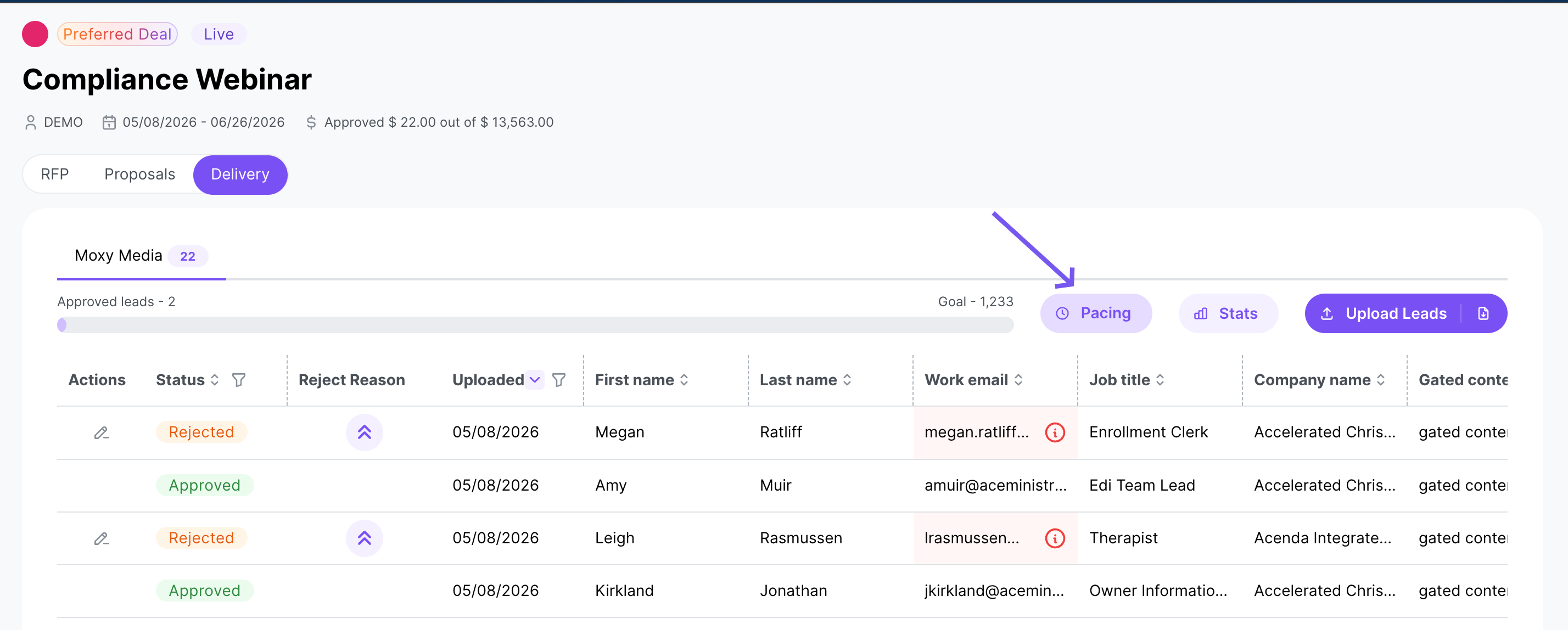
Audyence uses batches to pace lead delivery against your weekly allocation targets.
How batches work:
When you upload a file, your leads are validated and added to your current open batch.
Batches follow your weekly pacing: your total committed volume is split into weekly targets across the campaign.
When a batch opens, validated leads move from Queued to Pending and count toward your delivery goal.
Queued leads:
If you upload leads when no batch is open, validated leads go to Queued.
Queued leads move to Pending automatically when the next batch opens, within 2 hours of it opening.
You don't need to do anything. Queued leads process automatically.
Tracking your progress:
Batch status and running totals show on your campaign's Delivery tab.
Your accepted lead count updates as leads move through validation and into batches.
Pacing
Warning: Deliver leads at a steady weekly pace against your total committed volume. Repeatedly missing pacing targets can lead to your remaining budget being reallocated to other publishers.
If leads are returned, replace them promptly so you don't fall behind.